- Fields
- Signature, initials, date, name, text, number, tick box, dropdown, attachment
- Roles
- Signer, approver, witness, in person, copy only
- Signing
- Any phone, tablet or computer, no app
Prepare the document
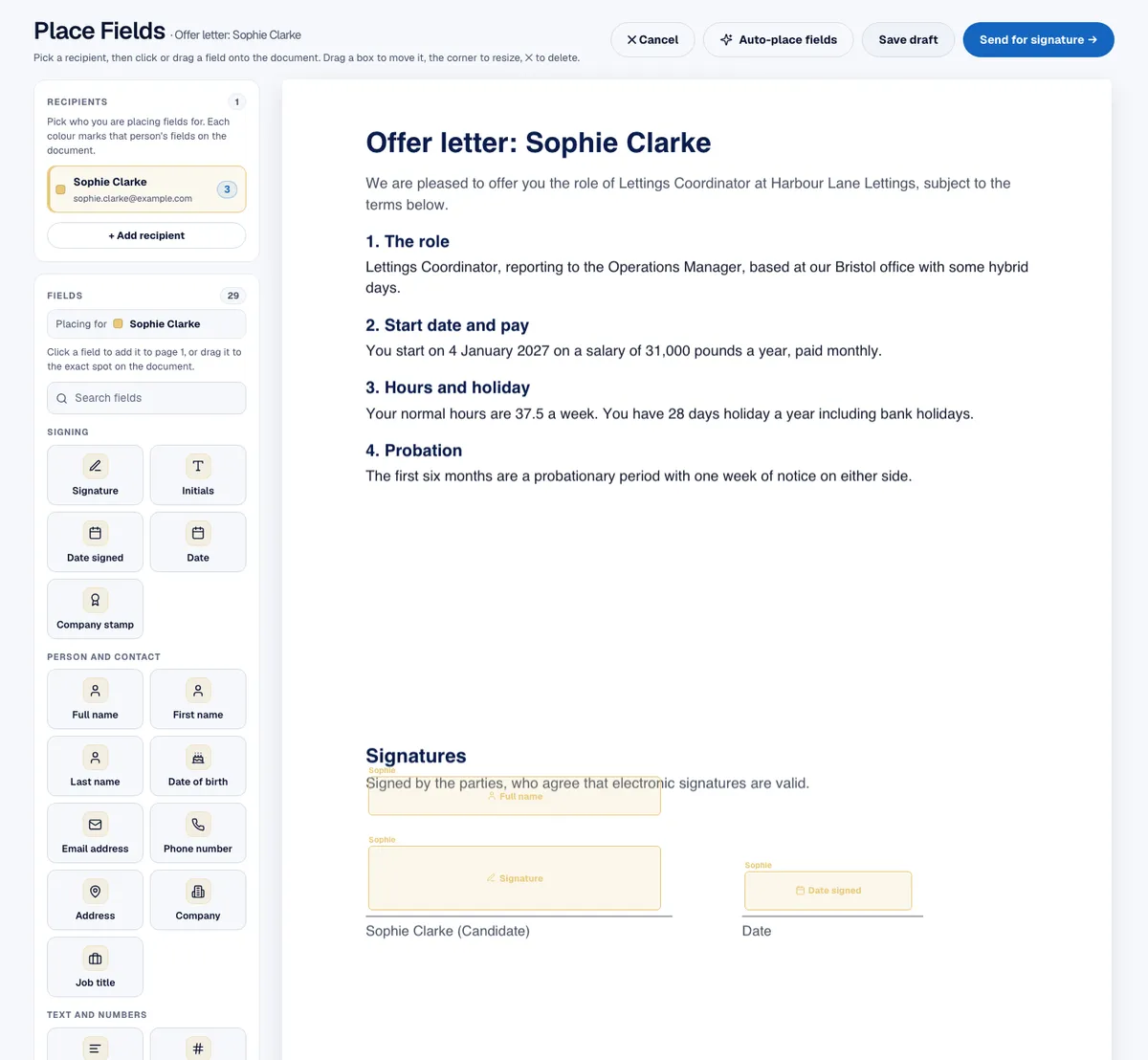
Upload a PDF or Word file, start from a UK template or write the text in the editor. On an uploaded PDF, InfinitDoc suggests where the fields go, and you move them where you want them. Each signer's boxes have their own colour.
Send in the order you choose
- Everyone at once, or one after another in the order you set.
- Add approvers, witnesses, people who sign in person, and people who only receive a copy.
- Add reminders and an expiry date, and correct a sent envelope without starting again.
- A signer who will not sign can decline and give a reason, and you see it straight away.
Choose how each signer proves who they are
You choose a check for each signer, so a low-risk letter can go with none and a contract that matters can use more.
- Access code: a code you give the signer separately, for example by phone, which they type before they can open the document.
- One time code by email: a code sent to the signer's email address when they open the link.
- Phone verification by text message (SMS): a code sent to the signer's mobile phone, from the Starter plan, which includes 50 text messages a month.
- Password: a password you set on the document and share by a different route from the link.
Every check is recorded on the signing certificate, so you can show later which one was used.
What the signer sees
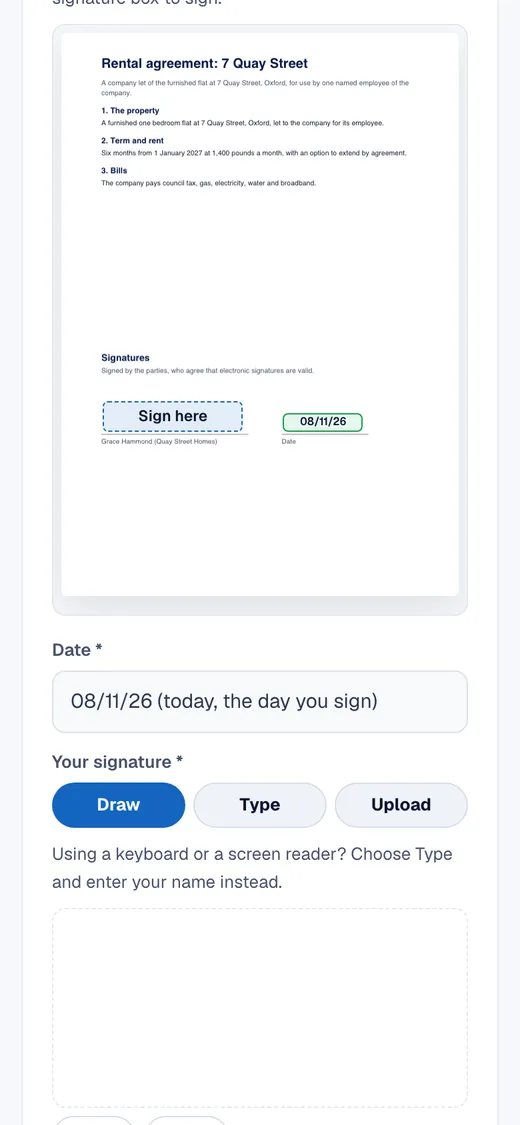
The signer opens a private link, reads the whole document, completes the boxes highlighted for them and signs by drawing, typing or uploading. They tick a consent to sign electronically before the signature is applied. A signer who signs often can keep their signature for next time, on their own address only, and delete it whenever they like.