- What you see
- Screens of the working app, not mock-ups
- The data
- Fictional names and companies, made up for this tour
- Try it
- Free plan, and your first month free with no card
The tour follows one contract. A lettings agency, Harbour Lane Lettings, prepares a tenancy agreement, sends it to a tenant and a landlord, watches it move, and keeps the signed copy. Beside it you will see the contacts, templates and invoices the same agency keeps in the same workspace. Nothing here is a mock-up: you are looking at the screens a new workspace gets.
1. Your dashboard
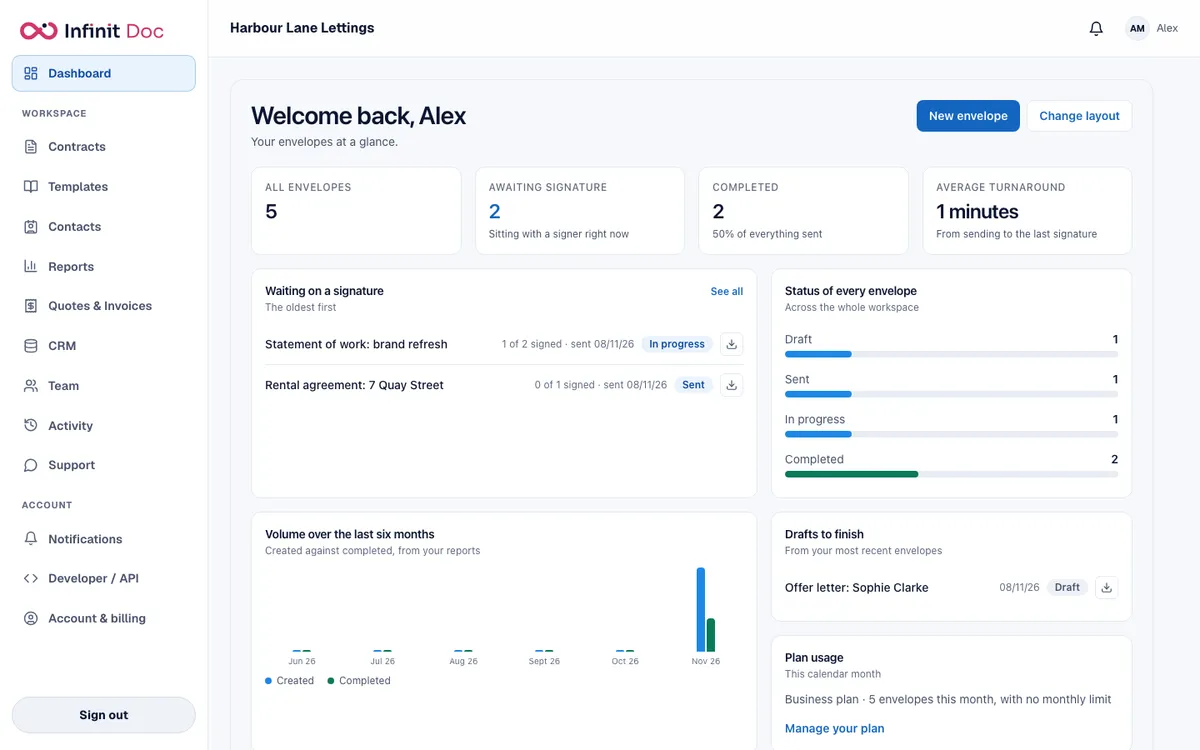
The dashboard answers one question when you sign in: what is waiting on someone? It counts your envelopes, shows which ones are with a signer right now, how many are complete and the average time from sending to the last signature.
2. Every contract in one list
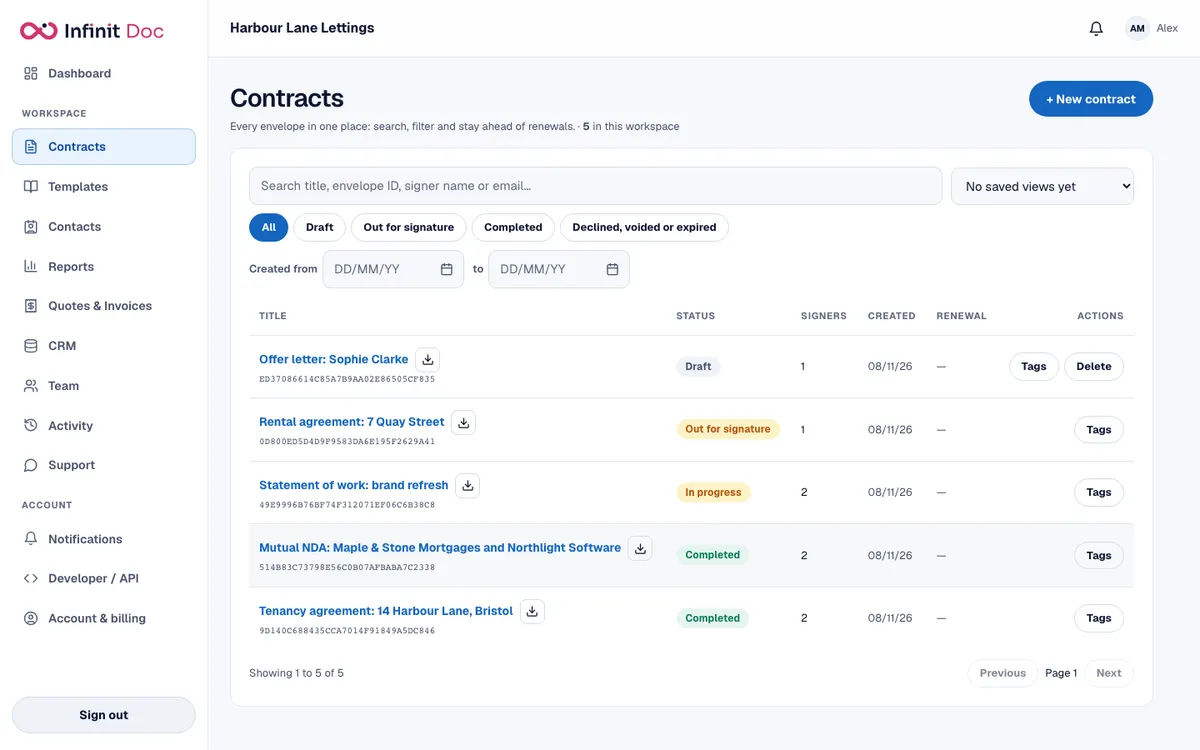
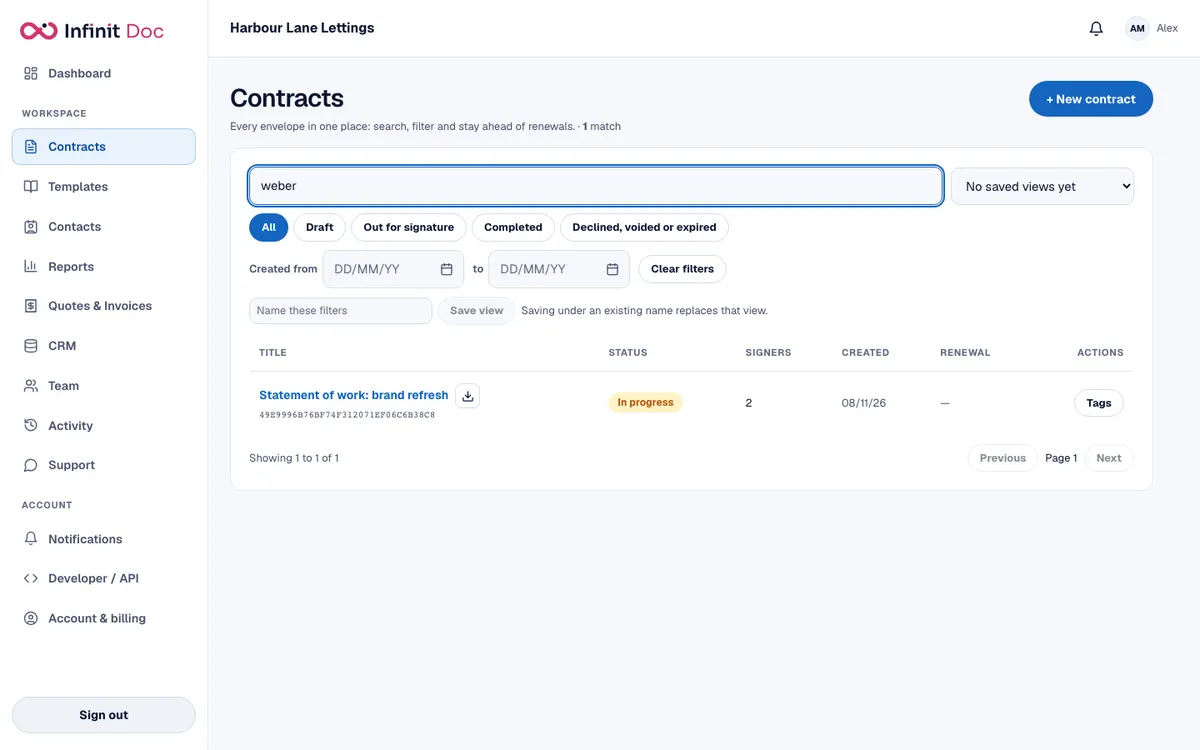
Each envelope you send appears in the Contracts list with its status: draft, out for signature, in progress or completed. Search by title, envelope ID, signer name or email, filter by status or date, and save the views you use often.
3. Place the fields
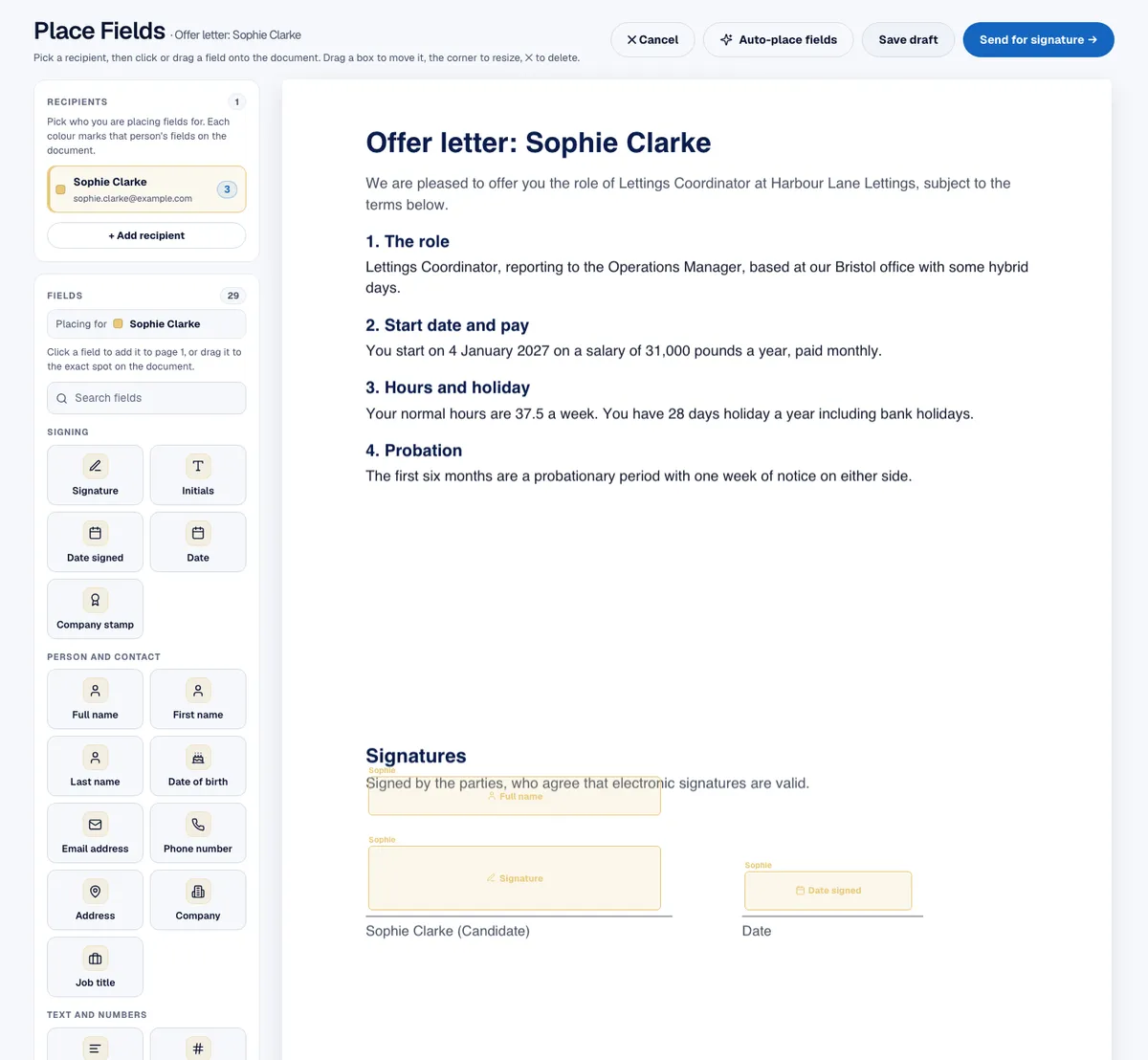
Upload a PDF or Word file, or start from a template. Add each signer, then drag the boxes they have to complete onto the page: signature, initials, date, name, text and more. Each signer's boxes have their own colour, so nobody is asked to fill in someone else's.
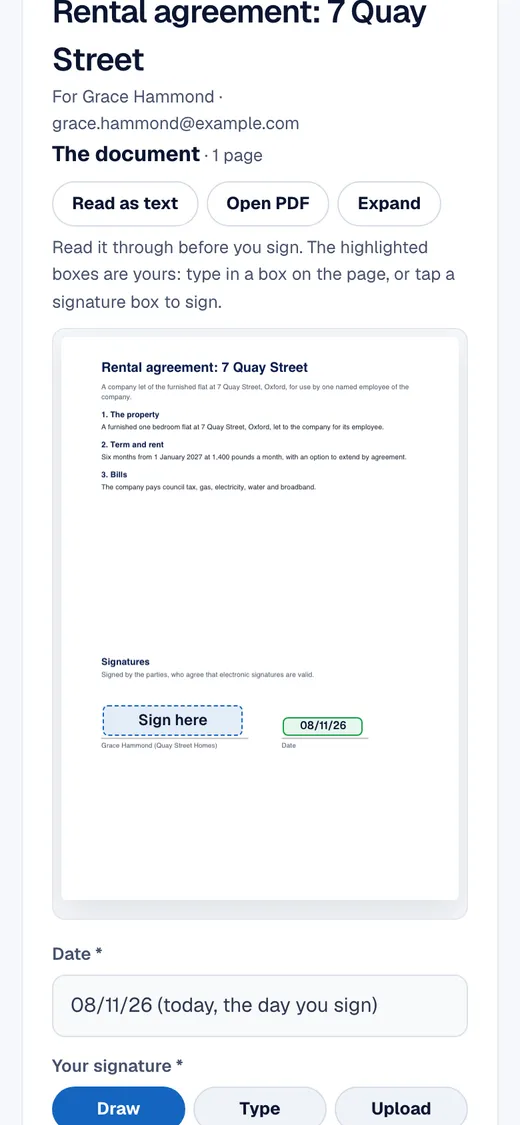
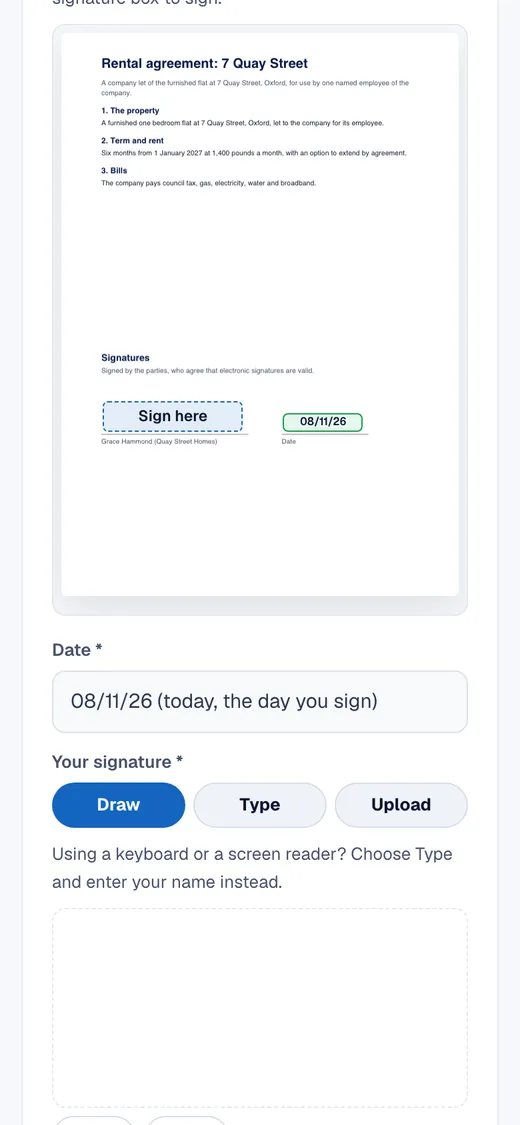
4. Signing on a phone
Signers do not need an account or an app. They open their private link in any browser, read the document, and sign by drawing, typing or uploading. The highlighted boxes show exactly where they are needed.
5. Watch the envelope move
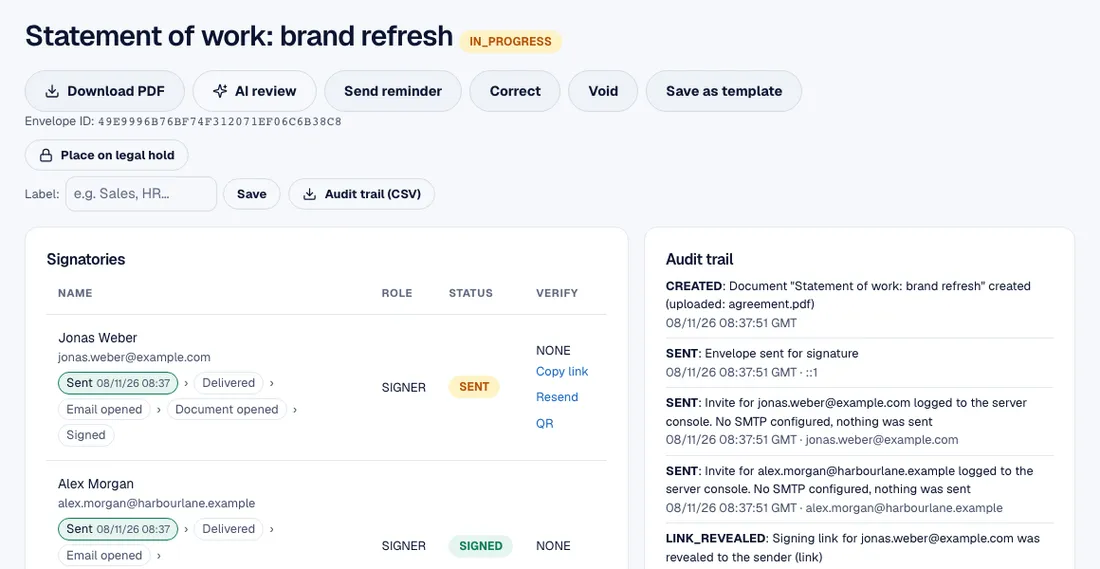
Open any envelope to see each signer's progress: sent, document opened and signed, with the time of each step. The audit trail beside it lists everything that happened to the envelope.
6. The certificate of authenticity
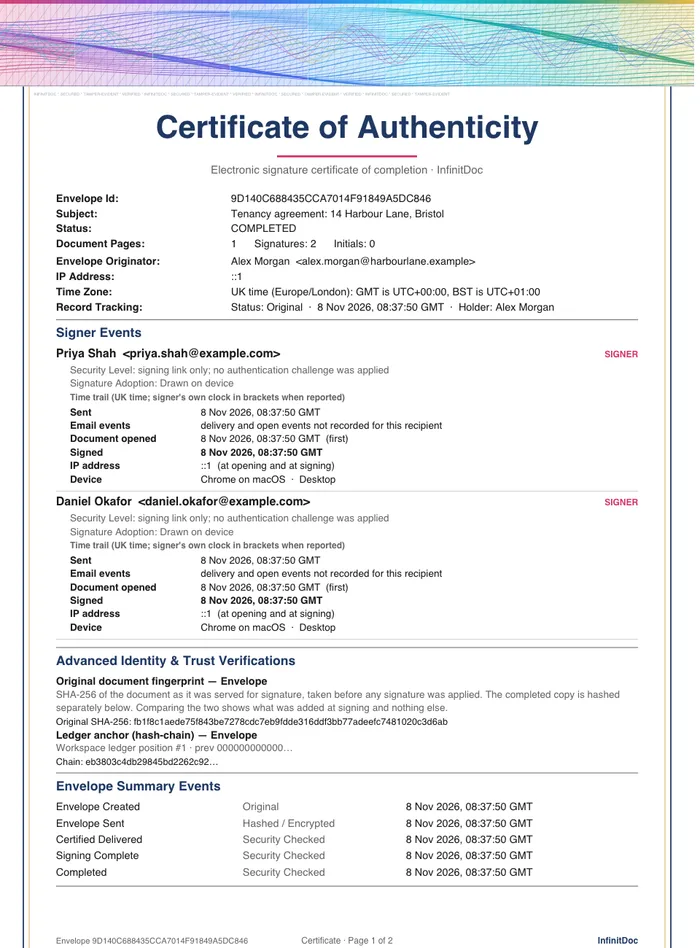
When the last signer finishes, InfinitDoc produces a certificate with the envelope ID, each signer's steps in UK time and UTC, the security level applied and the document's SHA-256 fingerprint. Anyone with the envelope ID can check a copy on the verification page.
7. Contacts and your small CRM
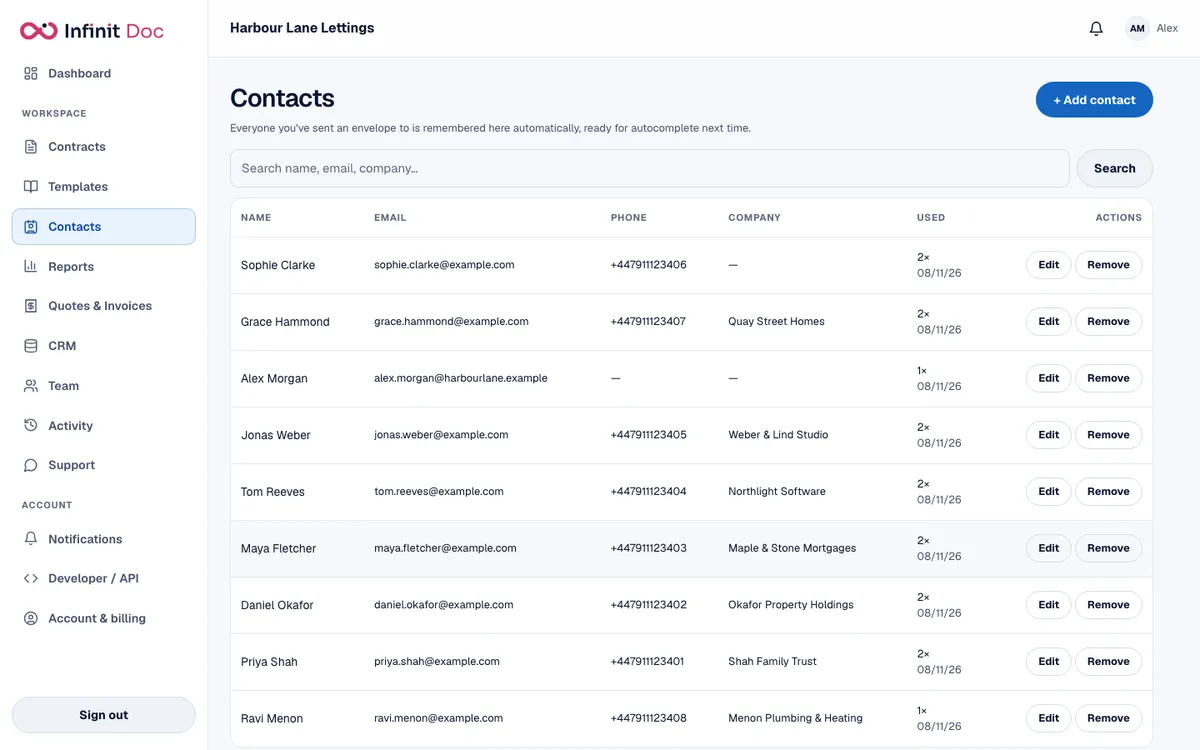
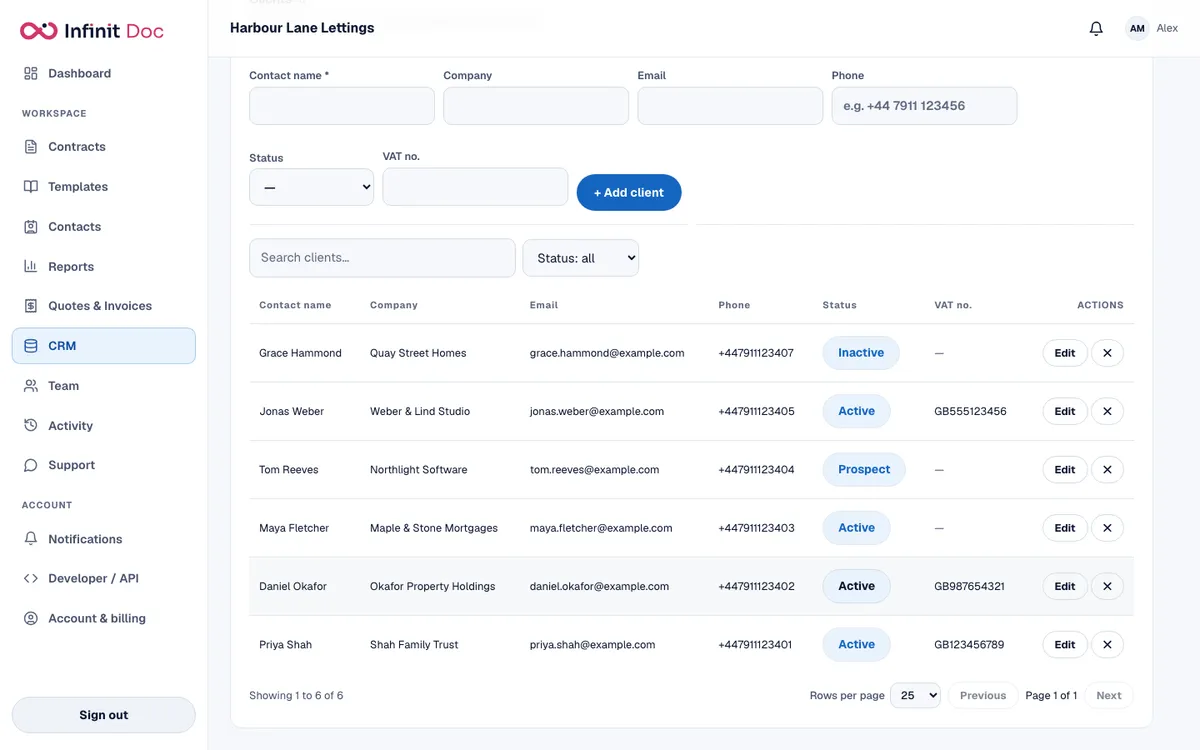
People you send to are saved in your contacts automatically. Beside them, simple lists such as Clients and Leads hold the fields you choose. Read about the CRM.
8. Templates you reuse
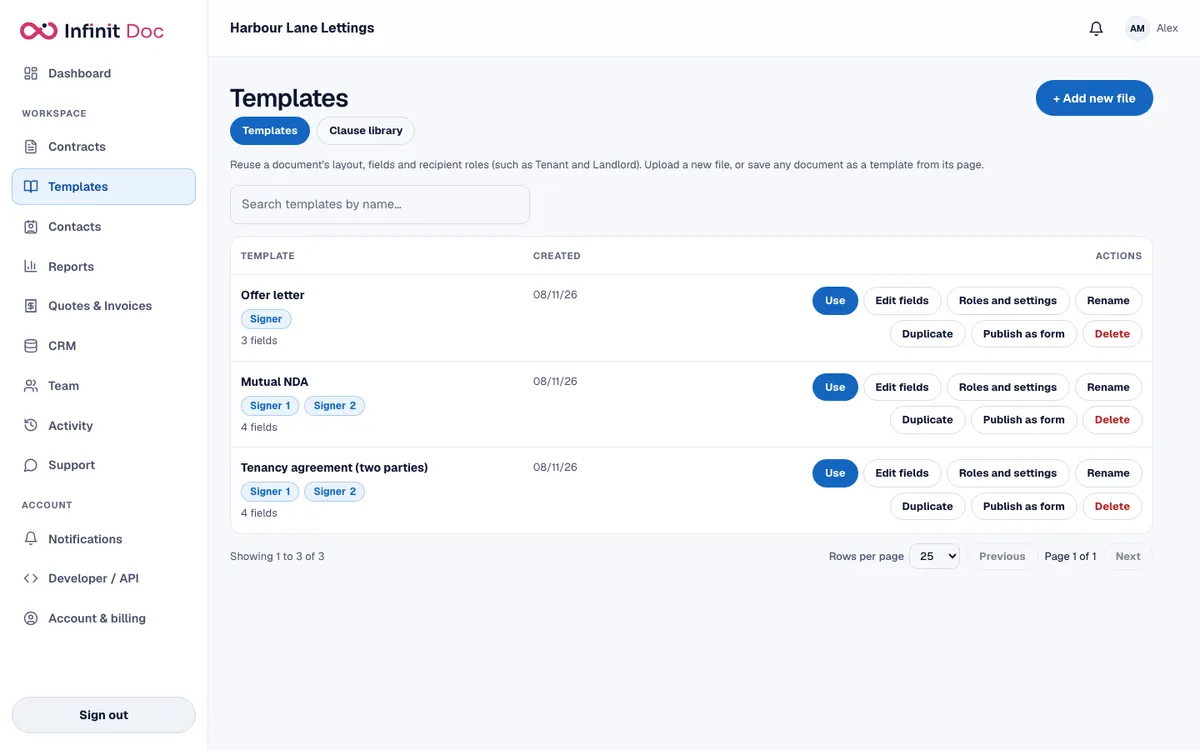
Save any document as a template, keeping its fields and signer roles. Next time, pick the template, name the signers and send.
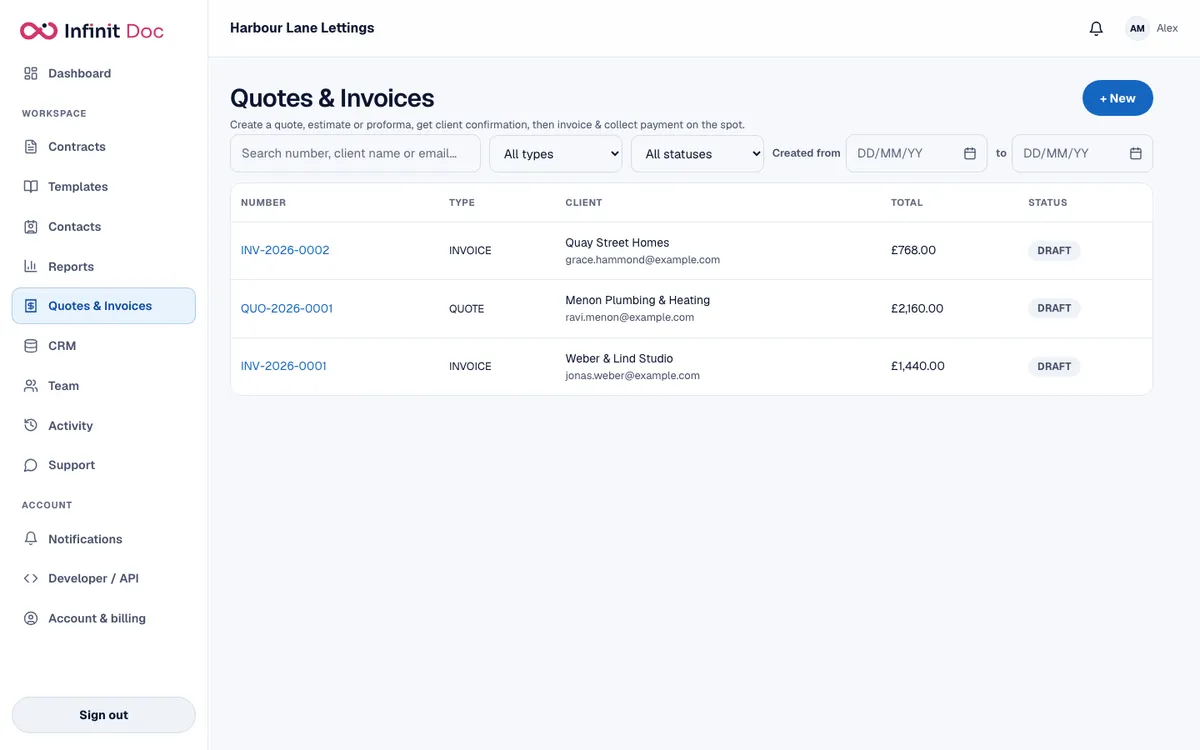
9. Quotes and invoices
Raise quotes and invoices beside your contracts. Attach a payment to a document and it can be collected as the last signer finishes, on the Pro and Business plans.
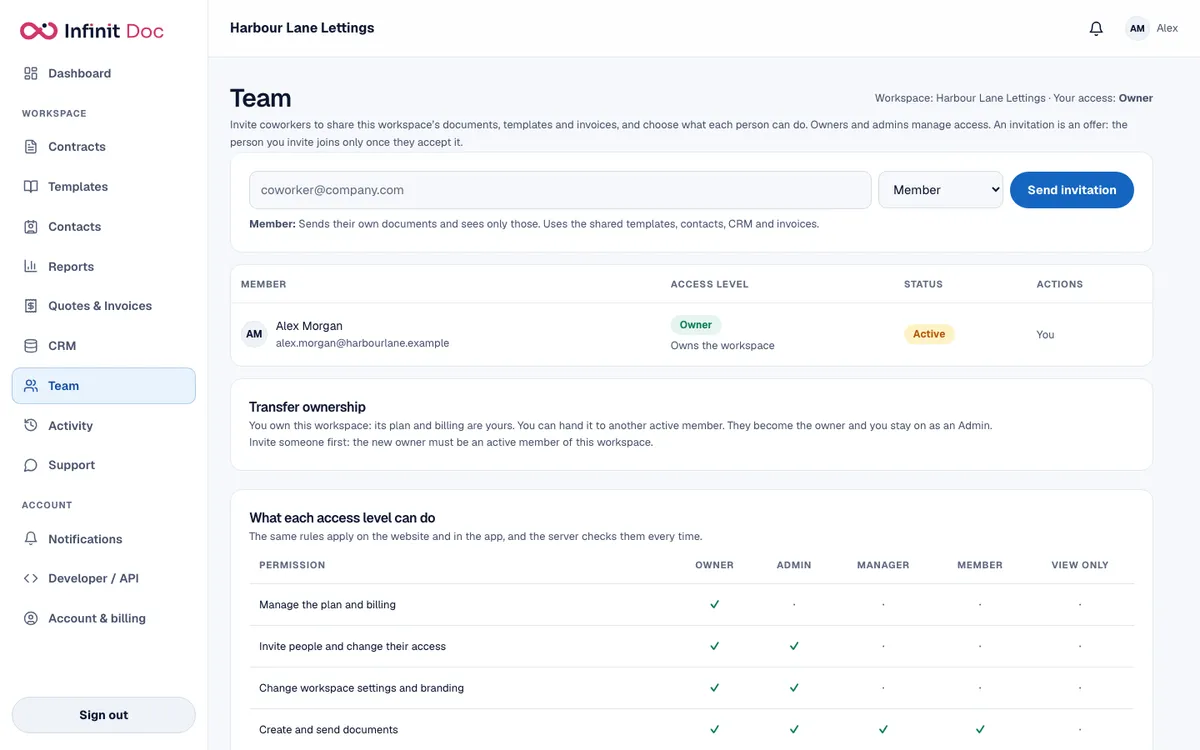
10. Your team
Invite colleagues and give each an access level. The table shows what each level can do, and the server checks it every time. More about teams.